How to prepare TOTP (Time-based One-Time Password) authentication for the login at the FCCF computers?
Please, follow the guide below to setup TOTP authentication that you need to login at our instrument PCs. (Cantos, Fortessas, ID7000 and MA900)

From 4th of August 2025 the login at our instruments will require a TOTP password
This change applies only to logging in on FCCF computers (e.g., analysis PCs, MA900 PC). It does NOT affect the booking system website.
Until 3rd of August 2025: You can still log in with your username and password.
From 4th of August 2025: You will no longer be able to log in with username and password. You must have TOTP authentication set up!
Avoid last-minute issues: We recommend that you set up TOTP now in advance to ensure a smooth transition.
The setup of TOTP authentication must be done in advance. You need an internet connection during the initial setup.
Once initial setup is completed, the TOTP app on your mobile phone will generate codes without needing mobile signal or internet.
You always need your mobile phone at the instrument to be able to log in!
Step-by-Step Guide: TOTP setup for FCCF computer access
A. Visit your profile on the booking system website
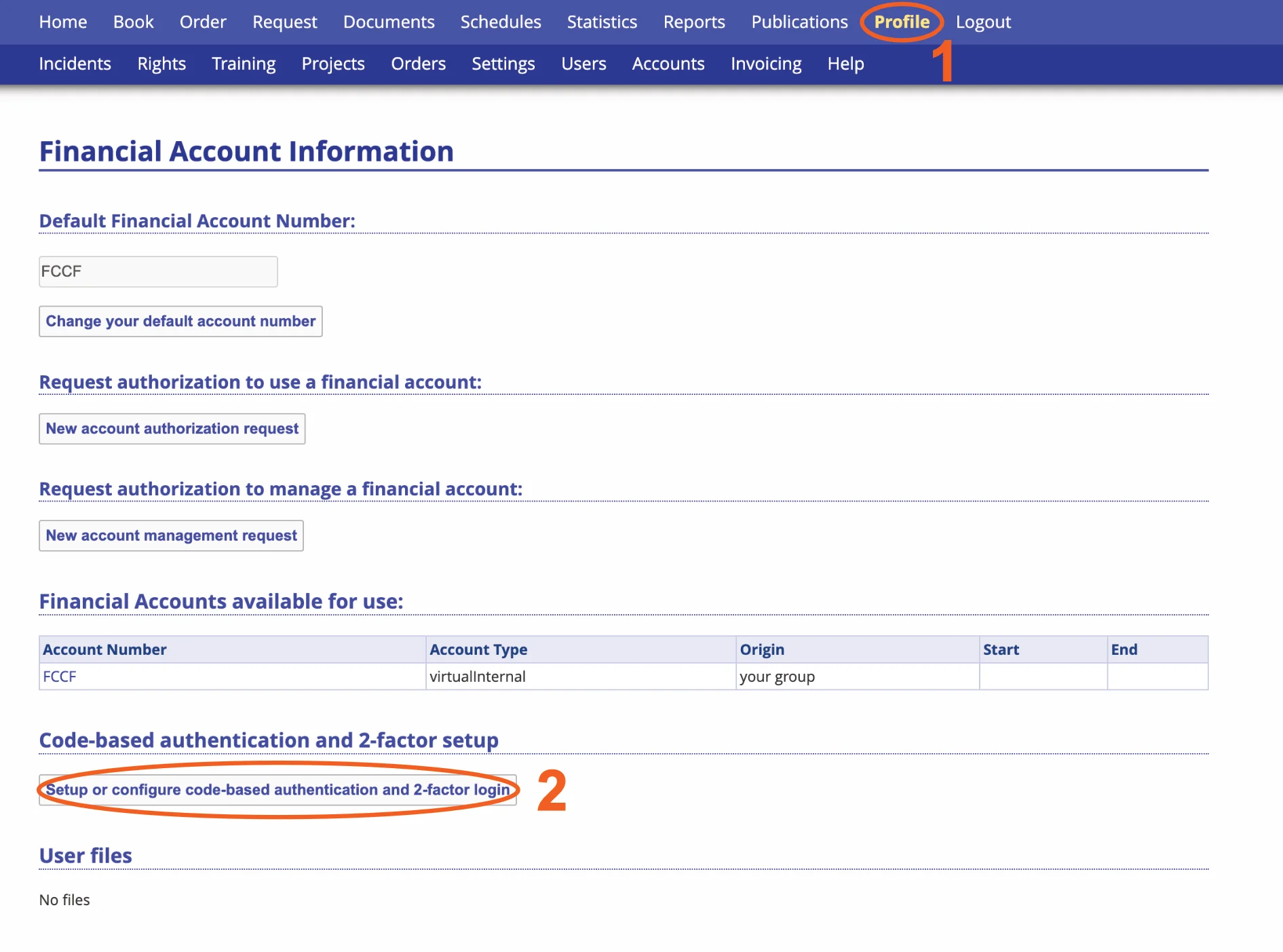
Go to https://ppms.eu/uni-bonn/?FCCF and login with your login credentials. Select "Profile" (see image 1 step 1) in the navigation bar (direct link: https://ppms.eu/uni-bonn/userprofile/?pf=2) and click on "Setup or configure code-base authentication and 2-factor login" (see image 1 step 2).
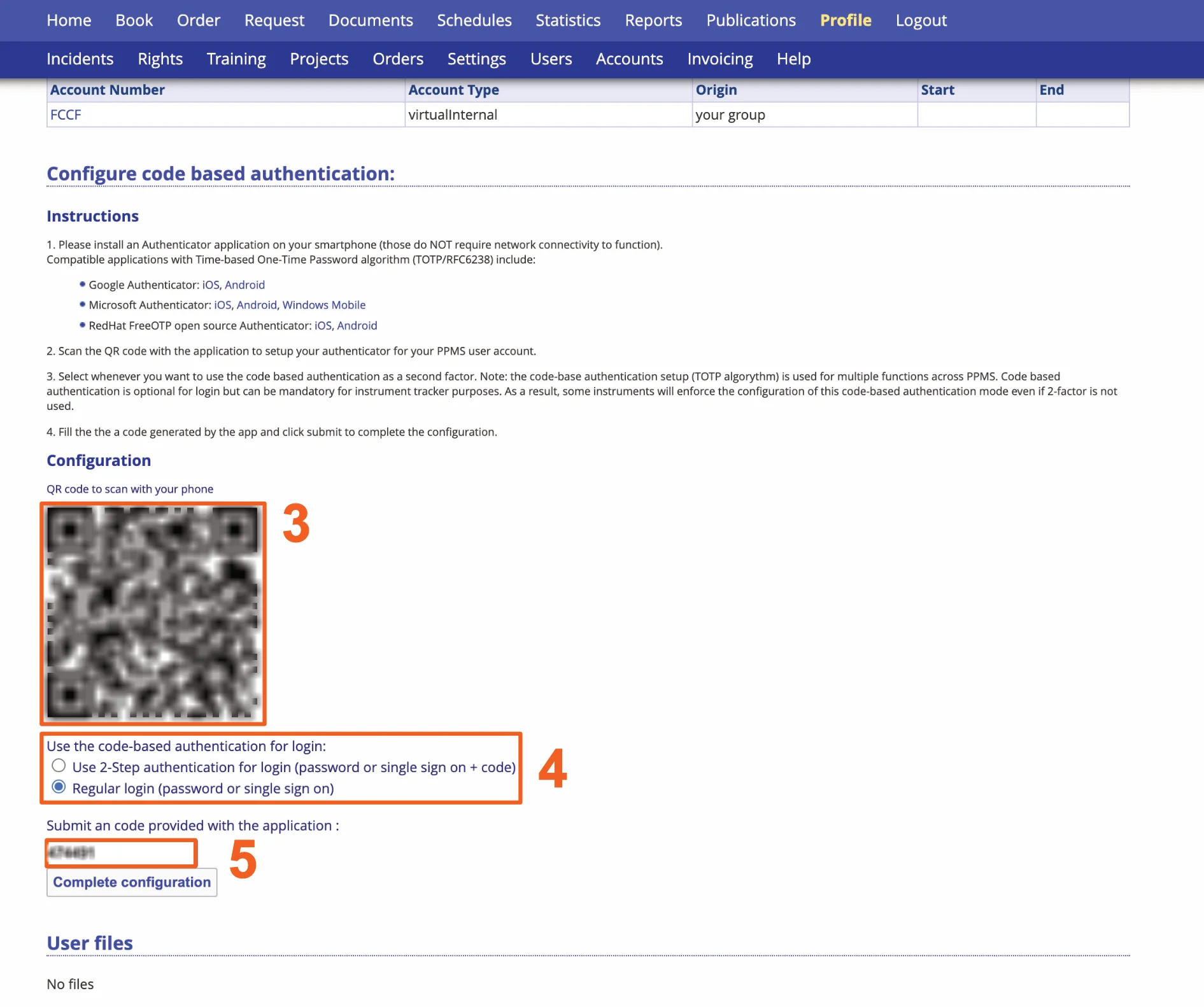
B. Read and follow the instructions on the configuration page (see image 2)
- If you do not have an authenticator app installed yet, download and install one that suits you and works on your mobile phone (MobilePass+, Google Authenticator, ...).
- Scan the QR code with the authenticator app (see image 2 step 3).
- Select the option for "Regular login (password or single sign on)" (see image 2 step 4)
- Enter the 6-digit code from the authenticator app in the field "Submit an code provided with the application" (see image 2 step 5)
- Press the button "Complete configuration"
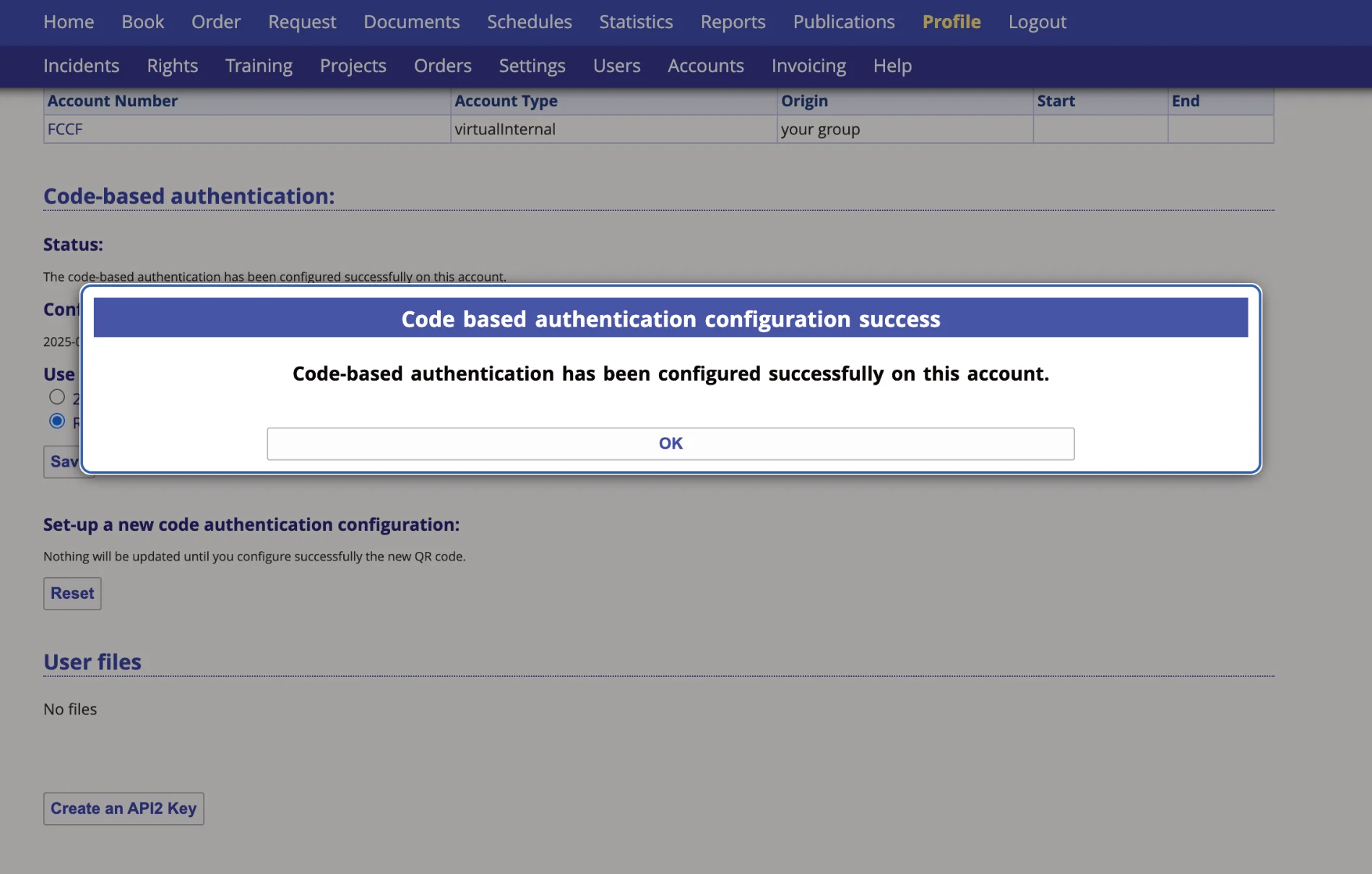
- You have successfully finished the initial setup for TOTP authentication (see image 3).
C. You are ready to login at the FCCF computers
The Core Facilities thank the German Research Foundation for continuous support.
